Sunday, February 24, 2019

Back up iPhone 7 to Computer via iTunes 2019


Option 1. Back up iPhone 7 to Computer via iTunes

Using iTunes, you can back up the entire data of your iPhone 7 to your personal computer. In case you lose the iPhone 7 data accidentally, you can always restore the backup to the iPhone. You can follow the steps given below.
Method 1: Back up iPhone 7 to your computer from menu bar on Mac

Step 1. Connect the iPhone 7 to your computer using the USB cable and open iTunes software.

Step 2. Select “File” in the Menu bar and then select “Devices” from the various options shown.

Step 3. Click “Back Up” to start backing up your iPhone 7 to the computer.


Method 2: Back up iPhone 7 to your computer from side bar on Windows

Step 1. Connect the iPhone 7 to your computer using the USB cable and open iTunes software.

Step 2. Under Menu bar, click on “Device” icon. Then, under “Settings”, click “Summary”.

Step 3. Select “This Computer” under “Backups” for storing the iPhone 7 backup.

Step 4. Click “Back Up Now”, which is on the right side to begin the backup process of iPhone 7 to the computer.


Tip: How to Check iPhone Backups in iTunes

If you want to check if the iPhone 7 data is backed up or not, you can follow the simple steps given below.

Step 1. In the Menu bar, click “Edit” and select “Preferences”.

Step 2. In the next Devices Preferences window, click on the “Devices” tab.

Step 3. You can see that the iPhone 7 backup is present there.


Sponsor ads:Best Free Video Converter for Windows and Mac

Must Read:If you lost data after you updated to a new iPhone, you can always use Gihosoft iPhone Data Recovery to get the data back from the old iPhone or backup.

Gihosoft Free iPhone Data Recovery:iphonerecovery.com


If you use android phones, please choose Gihosoft Android Data Recovery

Friday, February 22, 2019

Leawo iTransfer Review and Better Alternatives 2019


What is Leawo iTransfer?

It is software made especially for transferring data to and from your iOS device. It transfers data between your devices, your computer, and even your iTunes library with relative ease. You can share between many different devices and bypass some of Apple’s restrictions. Some of its features include:


Transfer to and from iPhone, iPad, and iPod devices.


Transfer many different types of files: music, movies, TV shows, ebooks, photos, etc.


Back up your data from iDevices to computer. You can also transfer and back up files from your computer and put it on your devices.


Add and share items from your iTunes library without opening iTunes.


Turn your iOS device into basically a flash drive.


Use an interface that is much easier to navigate than iTunes.
Leawo iTransfer Review

Now the question is, how does Leawo iTransfer measure up compared to other iPhone transfer of its kind? Let’s take a quick look at how it performs:
Test & Review

Leawo iTransfer is basically transfer software that lets you move your files from one device to another without Apple’s restrictions. You can transfer many different types of files, and they are often automatically converted before they reach your iOS device. Overall, the application is easy to use and runs well. The user interface is simple and anyone can learn how to use it.


The transfer process was fast, and it was easy enough to select the files that needed to be transferred. It worked well both with PC and Mac, and many different versions of windows were supported. Similarly, it worked with many different versions of iOS.
Pros:


Extremely simple to use. It had just a few buttons in the main window and it was very obvious what each of them did. Even an absolute beginner could use Leawo iTransfer. The interface looked very polished and professional.


You can transfer almost any kind of file.


You can transfer files even if you haven’t purchased them. This is great for people who like to collect massive media libraries from free downloads online. You can easily transfer these to and from your device.Sponsor ads:Best Free Video Converter for Windows and Mac


Must Read:If you lost data after you updated to a new iPhone, you can always use Gihosoft iPhone Data Recovery to get the data back from the old iPhone or backup.


Gihosoft Free iPhone Data Recovery:iphonerecovery.com


If you use android phones, please choose Gihosoft Android Data Recovery
Cons:


This is basically expected, it is not free and if you want to go beyond the trial features, you have to pay.


The interface is nice, but it’s not quite and simple and elegant.


It’s an old iPhone transfer software and has not been updated for a long time.


Lots of its functions cannot support even iOS 9 & 10. Its official website still says it supports the latest iOS 7.
What to Expect When It Comes to iPhone Transfer Software

No matter what transfer software you want to get, there are certain standard features that you should always expect:


Two-way transfer between iPhone and your computer freely.


The ability to manipulate your iTunes library without opening iTunes.


Support for many different types of files: music, movies, TV shows, playlists, photos, podcasts, ringtones, etc.


Support for many versions of iOS, many models of iDevice and even the latest ones.


No risk of data loss during data transfer.


The ability to share music and other media with multiple devices.


The ability to share music across many Apple IDs.

Thursday, February 21, 2019

Read Verizon Text Messages Online


Read Verizon Text Messages Online

As stated earlier, getting your text messages through your mobile providers could prove to be a hassle. You can go through the process if that is what you really want. However, you may not be able to get all the information you need. For example, if you use Verizon and you need your text message details, you will not be able to get the complete information. Verizon will only give you the date, phone number and time stamp of the messages, not the text content itself. To read Verizon text messages, you can follow these details:

Step 1: Sign into your My Verizon account online.

Step 2: To the left side, you will see a link to view your usage - click on that link.

Step 3: You will be shown your unbilled calls and text details.

Step 4: If you have further details, you will have to contact Verizon directly. Still, bear in mind that the information they can give you is very limited.


Sponsor ads:

Gihosoft Free iPhone Data Recovery:https://www.gihosoft.com/iphone-data-recovery-free.html

Gihosoft iPhone Data Recovery Free

Free iPhone Data Recovery Software for Windows/Mac

Recover up to 12+ types of files, including contacts, SMS, photos, WhatsApp, Viber, notes, etc.

Restore lost data from iOS devices directly or from iTunes and iCloud backup

Recover iPhone data lost due to iOS upgrade/jailbreak, accidental deletion, device lost or broken

Support all the latest iPhone, iPad and iPod Touch

Both Free and Pro version.

If you lost data after you updated to a new iPhone, you can always use Gihosoft iPhone Data Recovery to get the data back from the old iPhone or backup.You may also like: iphonerecovery.com

If you use android phones, please choose Gihosoft Android Data Recovery.

With Gihosoft Android Data Recovery, no longer afraid of data loss!

Must read:Youtube video downloader for pc

Gihosoft RePicvid Free Photo Recovery Software provides a free photo recovery software for windows to help users recover the deleted or lost photo for free.

Jihosoft Android Data Recovery: the best Android Data Recovery software for Windows and Mac to recover deleted contacts, messages, photos, videos, WhatsApp and etc from Android devices.Tips:How to transfer messages from iPhone to iPhone


jihosoft Free iPhone Data Recovery

Friday, August 31, 2018

Tips on Transfer Playlist from Old iPhone to New iPhone with iTunes


Tips on Transfer Playlist from Old iPhone to New iPhone with iTunes
Transfer Playlist from Old iPhone to New iPhone with iTunes

Apple iTunes has been redesigned, and also figuring out the new user interface can be a bit difficult. Copying playlists to an iPhone is a bit different depending upon the version you are making use of. Check out how it is done below;

For iTunes 12


Connect your device to the computer.


Select the symbol for your gadget, situated at the upper-left portion of the screen.


Select the "Music" choice on the left pane.


Select the "Sync Songs" check-box is picked. In the "Playlists" area, check the playlists you desire to sync with your iPhone gadget.


Select "Sync" and your playlist should sync.


For iTunes 11


Connect your gadget to the computer.


Click your gadget switch at the upper-right section of the screen.


Select Contribute to ... This will make a materials food selection offered on the ideal side.


Select "Playlists" at the top of the display.


Drag any kind of playlist from the left side to the right side.


Click "Done", after that select the "Sync" switch in the reduced right edge of the screen to sync your adjustments.

You have actually successfully moved a playlist to your Apple tool.
Transfer Playlist from Old iPhone to New iPhone with iCloud

Follow the steps in this section to back up your previous device in iCloud and to move the back-up to your new gadget.


Make an iCloud backup


Connect your previous iPhone to the Web with Wi-Fi.


Go to Setups > [your name] > iCloud > iCloud Backup. If you're making use of iPhone 10.2 or earlier, go to Settings > iCloud > Back-up. Ensure that iCloud Backup is turned on.


Click Back Up Now. Stay connected to Wi-Fi until the process finishes.

Transfer your iCloud backup to your new gadget:


Turn on your new device. A "Hello" display needs to appear. If you've already established your new device, you need to erase it prior so you can follow these steps. Stay connected until you see the Wi-Fi display.


Touch a Wi-Fi network to sign up with. Follow the steps until you see the Apps & Data screen, after that touch Restore from iCloud Back-up. Check in to iCloud with your Apple ID as well as password.


Jihosoft Android Data Recovery: the best Android Data Recovery software for Windows and Mac to recover deleted contacts, messages, photos, videos, WhatsApp and etc from Android devices.


Gihosoft Android data recovery Free is a super awesome software specialized in Android file recovery. With this program, you are able to recover deleted photos, music, videos, messages, contacts, call logs, WhatsApp messages, Viber chat history and more from Samsung, Huawei, LG, HTC, Motorola, Google, Oneplus, Sony, Lenovo, ZTE and other Android devices directly. Meanwhile, this Android data recovery software is available for both Windows and Mac platforms.For now, check:Free iTunes/iPhone Backup Extractor for iPhone, iPad


Jihosoft iTunes Backup Extractor free is a powerful tool to recover and extract important data from iPhone, iPad & iPod touch backup on Windows or Mac.


Stay connected and waits on the recover process to complete, and then finish the remainder of the onscreen configuration steps. Erase any data left after transferring from iCloud to your device by going to Settings > General > Reset > Eliminate All Material and also Setups. This will certainly erase any kind of data that's presently on your device. After you remove it, your iPhone restarts as well as the "Hello" display appears and you are good to go.

Wednesday, July 18, 2018

Download iOS 12 Beta 4 without developer account


Download iOS 12 Beta 4 without developer account
WHAT’S NEW IN IOS 12 BETA 4?


The Beta 4 update of iOS 12 doesn’t bring any new features, rather it fixes bugs and glitches present in the previous builds. Its build number is 16A5327f and weighs about 500MB.


According to its release notes, iOS 12 beta 4 resolves the following bugs and issues –


Fortnite crashing unexpectedly.


Netflix quitting while downloading a video.


Route map for a workout might be unavailable.


“No SIM” notification displayed in iPad when an Apple SIM is inserted without an active plan.


Screen data time may not sync properly across other devices.


Voice memos not syncing properly with iTunes.


Screen Time website usage of children not displaying on parents’ devices.


Apart from this iOS update, Apple also launched watchOS 5 Beta 4 and tvOS 12 Beta 4. You can download these updates from your Developer Center.


If you don’t have a paid developer account, you can simply use the OTA Profile or the IPSW files given below.
DOWNLOAD IOS 12 BETA 4
OTA PROFILE


Download
IPHONE


iPhone SE, iPhone 5s


iPhone 6s, iPhone 6


iPhone 6s Plus, iPhone 6 Plus


iPhone 8, iPhone 7


iPhone 8 Plus, iPhone 7 Plus


iPhone X
IPAD


iPad Air, iPad mini 2


iPad mini 4, iPad Air 2, iPad mini 3


iPad (5th generation), iPad (6th generation)


iPad Pro (9.7‑inch)


iPad Pro (12.9‑inch)


iPad Pro (10.5-inch), iPad Pro (12.9-inch) (2nd generation)
IPOD


iPod touch (6th generation)
SHOULD YOU UPDATE?


Yes, you should definitely update if you are affected by the aforementioned bugs. However, there’s no good reason as to why you should update if everything is running smoothly on your current version.


Moreover, early adopters have confirmed that the highly-anticipated Shortcuts app doesn’t ship with this version.


So, hold off before you upgrade to the latest version and wait till Apple officially releases the Shortcuts app.Jihosoft iPhone Backup Extractor Extract and recover all types of data from iPhone backup files, such as camera roll photos, videos, SMS, contacts, reminders, WhatsApp, and etc.

Gihosoft Free iPhone Data Recovery is a professional iPhone Data Recovery software to get back all your lost text message, photo, video, call history, note, contact and more from iPhone/iPad/iPod Touch.

Tuesday, July 17, 2018

How to Check Disk Space on Mac: Available and Used Space

How to Check Disk Space on Mac: Available and Used Space
Check Disk Space on Mac: MacBook Pro, MacBook Air, iMac Pro & All Macs

Step #1. Go to the Apple menu from the top right corner of the screen.


Step #2. Next, Under apple menu, Tap on About This Mac.

Step #3. there you can check presently installed OS X on your Mac in detailed. Like current version, Processor, Memory, Startup disk and Serial number.

Step #4. For check all about space on hard drive, Tap on Storage tab from the top.


If your Mac running more than one desktop OS with OS X, Then you can check free space individually in the separate partition. In below screen, you can see Macintosh HD running on macOS Mojave.

Also get where space used by your system likes apps, Media, Photos, Movies, Backups and Others. Also how many data space consume in MBs/ GBs.

If you ever lost or accidentally deleted data from your iOS device, you can use the professional Gihosoft iPhone Data Recovery software to retrieve important data from iPhone, iPad or iPod Touch even without backup.

Jihosoft iPhone Backup Extractor Extract and recover all types of data from iPhone backup files, such as camera roll photos, videos, SMS, contacts, reminders, WhatsApp, and etc.


Saturday, July 7, 2018

How to Enable Trackpad Mode in iOS 12 on iPhone 6, 6 Plus, SE, or iPhone 5s and iPad Running iOS 12


How to Enable Trackpad Mode in iOS 12 on iPhone 6, 6 Plus, SE, or iPhone 5s and iPad Running iOS 12


Step #1. Launch any app where you wish to use the trackpad.Related Articles:Gihosoft Android data recovery Free


I’m going to open Notes app to test this feature. Now, bring up the software keyboard just the way you normally do. Free iTunes/iPhone Backup Extractor for iPhone, iPad


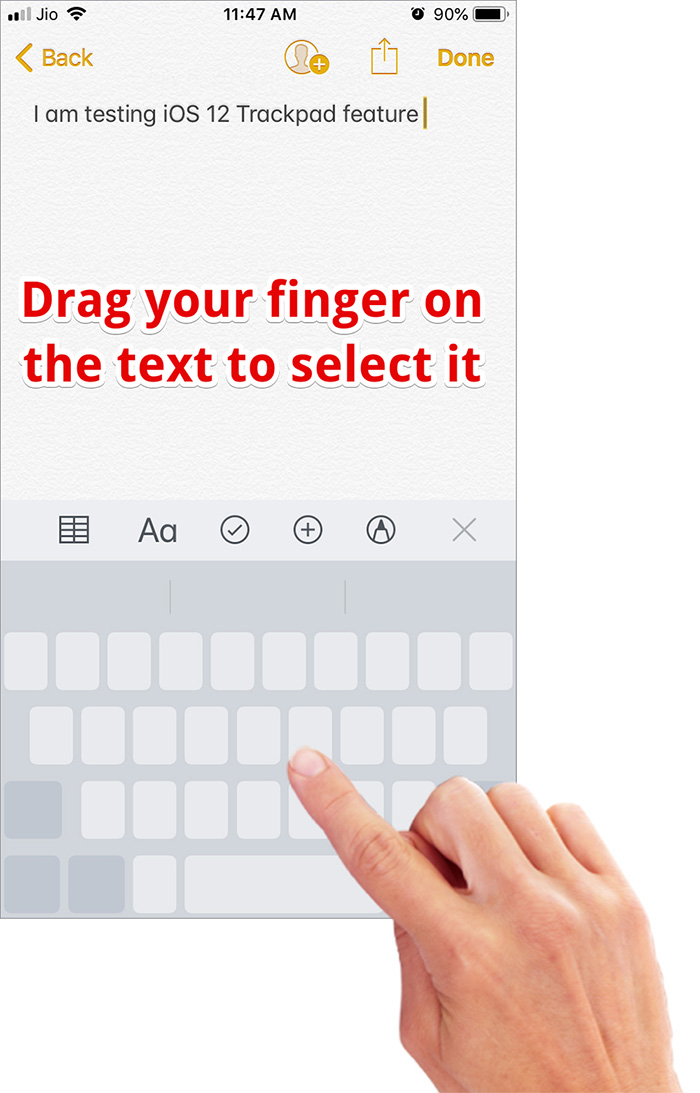
Step #2. To enter trackpad mode, you need to tap and hold the Spacebar key.


Once you have activated this mode, you can start the experiment.
Use Trackpad Mode On iPhone SE or Earlier and iPad Running iOS 12


To enter text selection mode, simply tap on any greyed-out area while still pressing the Spacebar key. Then, you need to drag your finger on the text to select it. (On your 3D Touch compatible iPhone, you can press the screen to select text.)


Sponsored Links


Once the text has been selected, you can go ahead and edit it as usual. Yes, you don’t need to keep holding the space key to do that.


You can tap on the selection to access the multiple formatting options such as Cut, Copy, Paste, Share Look Up etc.


That’s done!


Now that you have put your hands on this neat feature take the full advantage of it to edit text with ease.


Your take?


This new improvement has made the software keyboard more user-friendly. Have any feedback or question? Feel free to shoot it up in the comments.

Backup WhatsApp Messages to Gmail

Backup WhatsApp Messages to Gmail you can never have too many backups for your WhatsApp messages and while you may be able to back up the ch...